What it is
An orders and invoicing app for B2B distributors that want every order validated, invoiced and collected without retyping. Orders run automatic checks, turn into invoices with one click, and every problem lands in one exceptions queue with an owner.
Who it's for
- B2B distributors and wholesalers that sell on payment terms
- Sales reps who build orders for their customers
- Billing teams that validate orders, issue invoices and handle exceptions
- Finance teams that record payments and follow receivables
- Companies moving order-to-cash off spreadsheets and email
What you can do
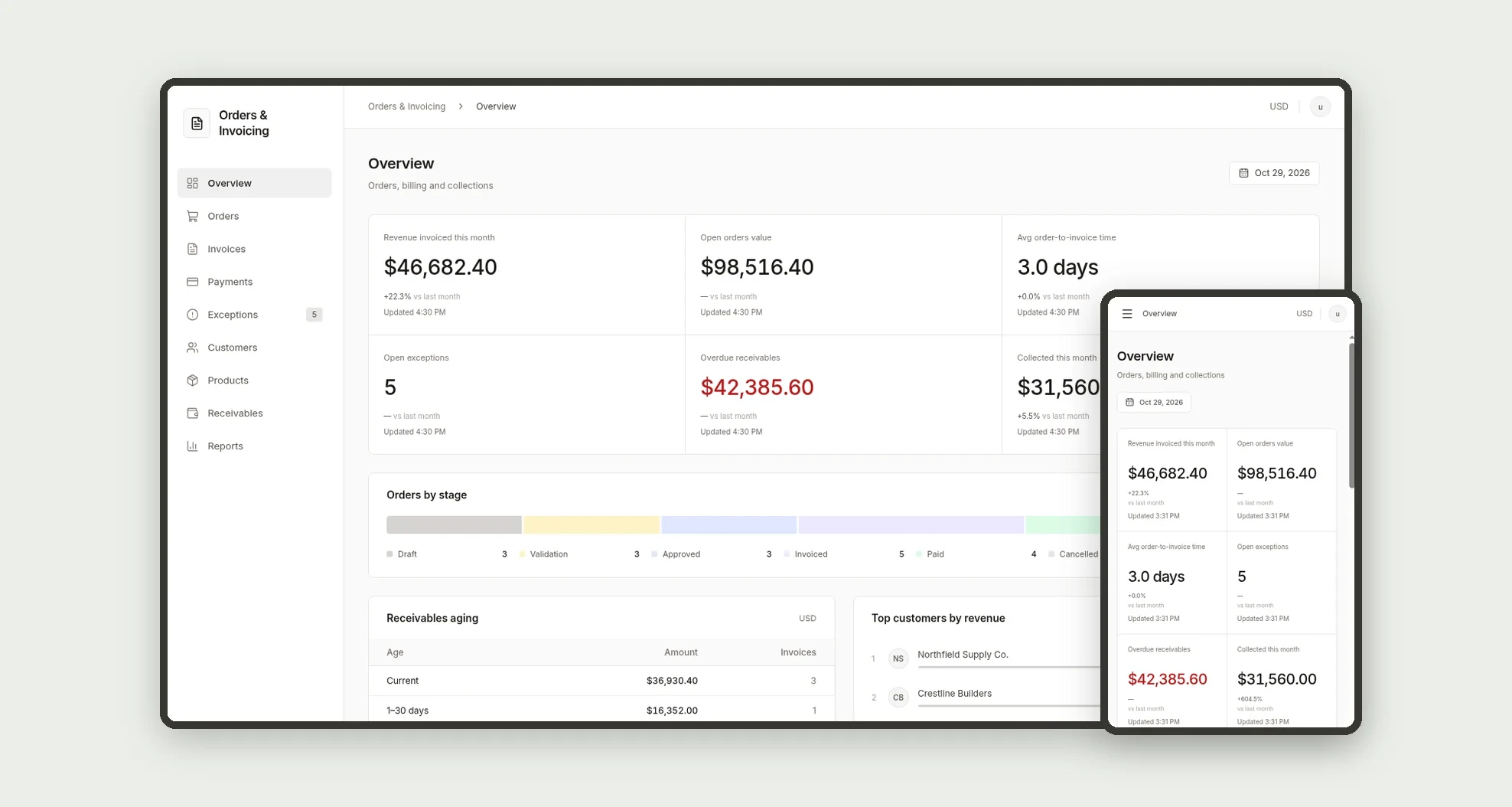
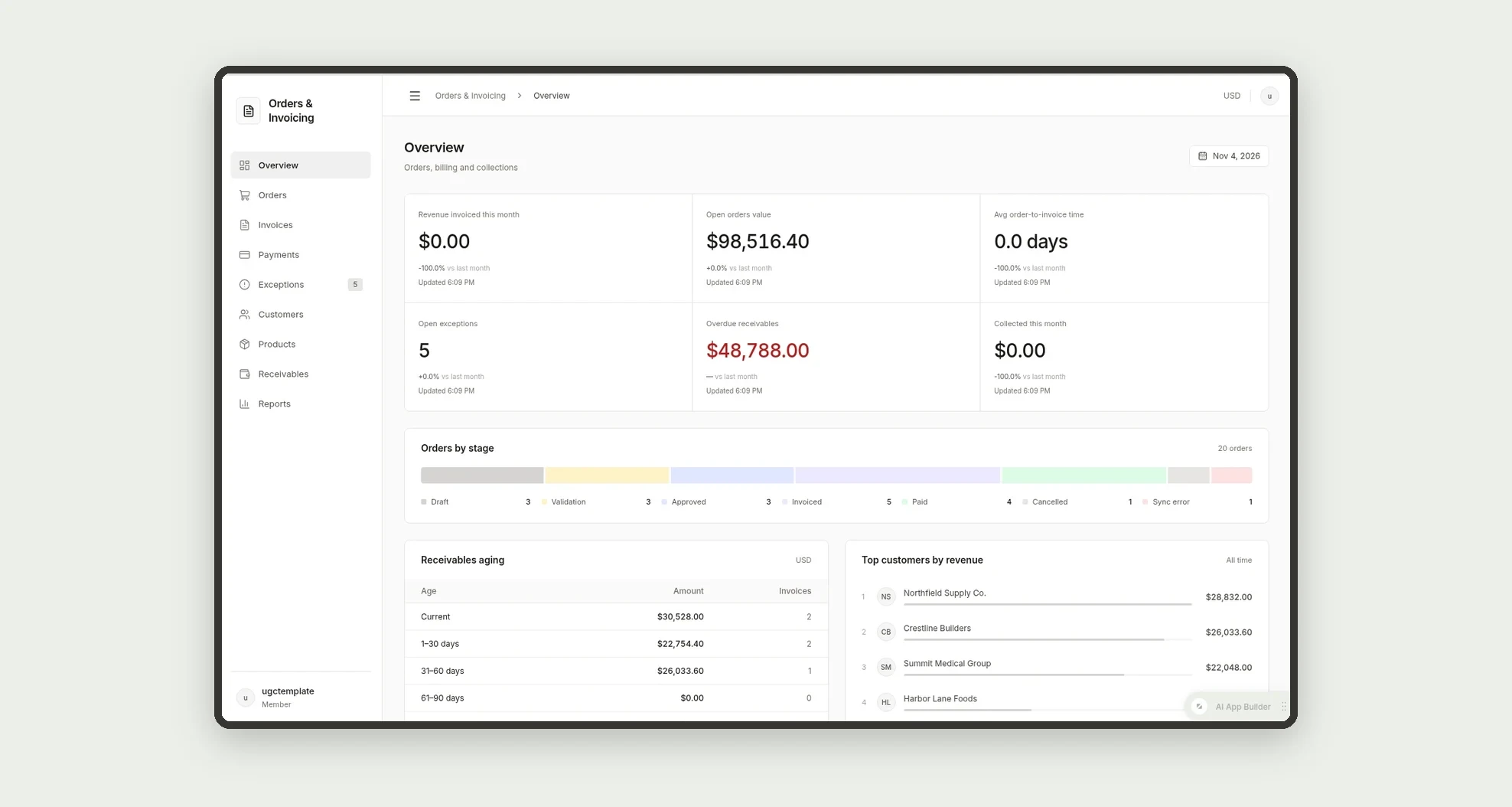
- See revenue invoiced this month, open orders value, average order-to-invoice time, open exceptions, overdue receivables and collected this month on the Overview, with orders by stage, receivables aging, top 5 customers and the 5 most recent open exceptions
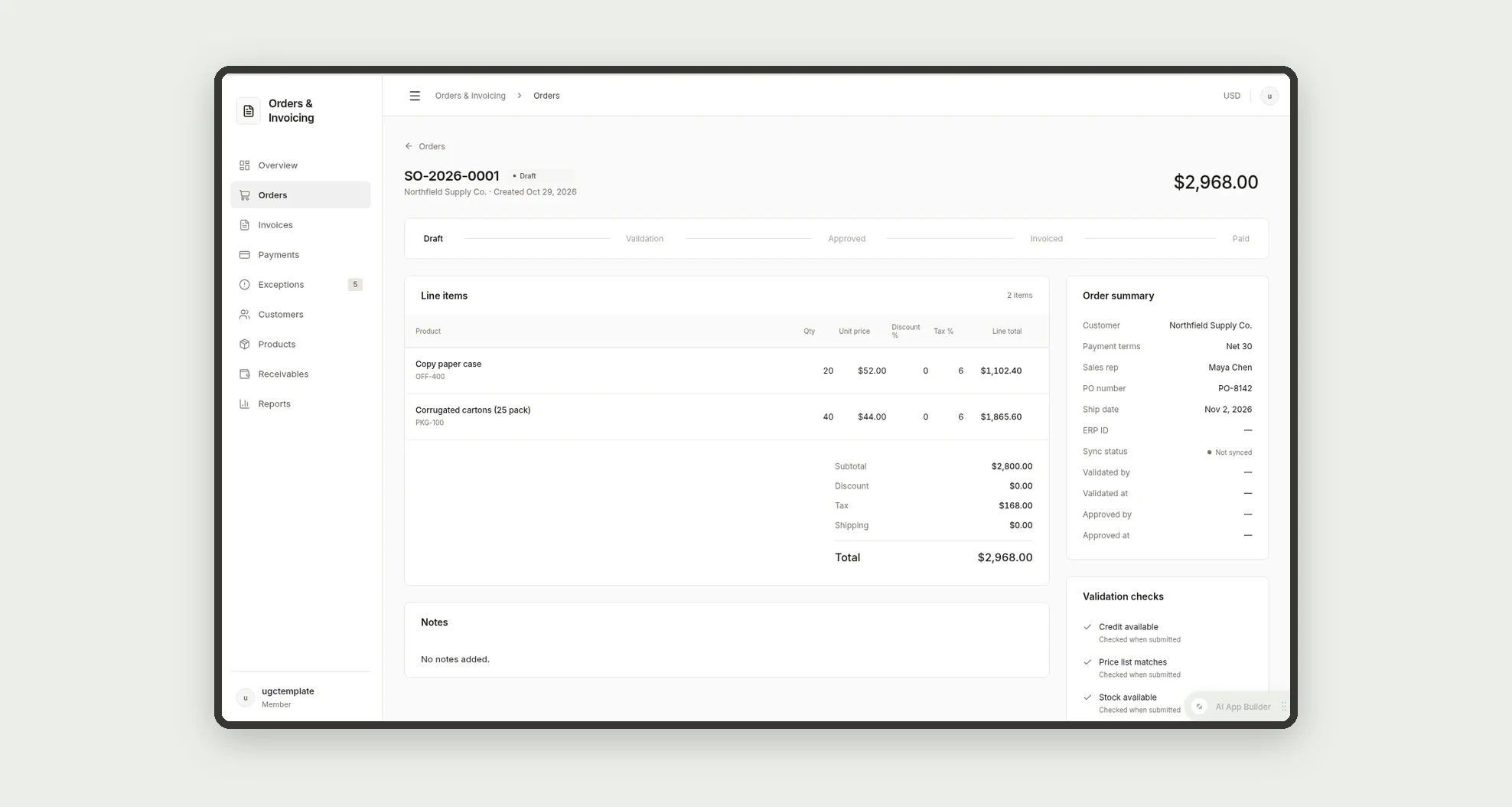
- Build orders with a line-item editor that pulls prices from the price list by customer segment
- Run validation checks on submit: credit limit, prices vs price list, stock, tax ID and shipping address
- Work through problems in a two-pane exceptions queue with Resolve, Retry sync and Reassign
- Create an invoice from an approved order, with line items copied and the due date set from payment terms
- Record full or partial payments by ACH, wire, card or check, and see invoices update to Partially paid or Paid
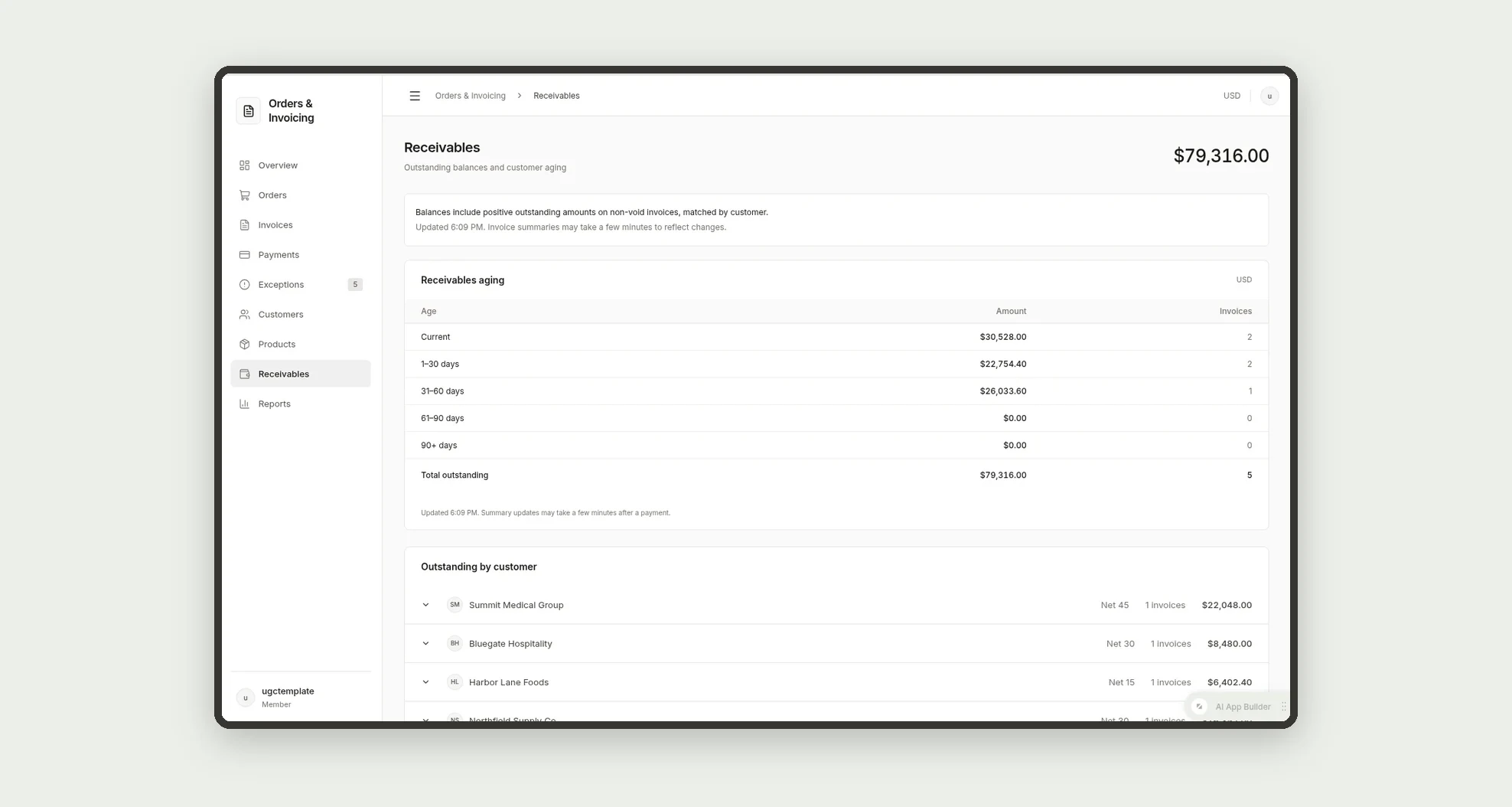
- Follow receivables aging by customer (Current, 1-30, 31-60, 61-90, 90+) and see credit limit vs balance on each customer profile
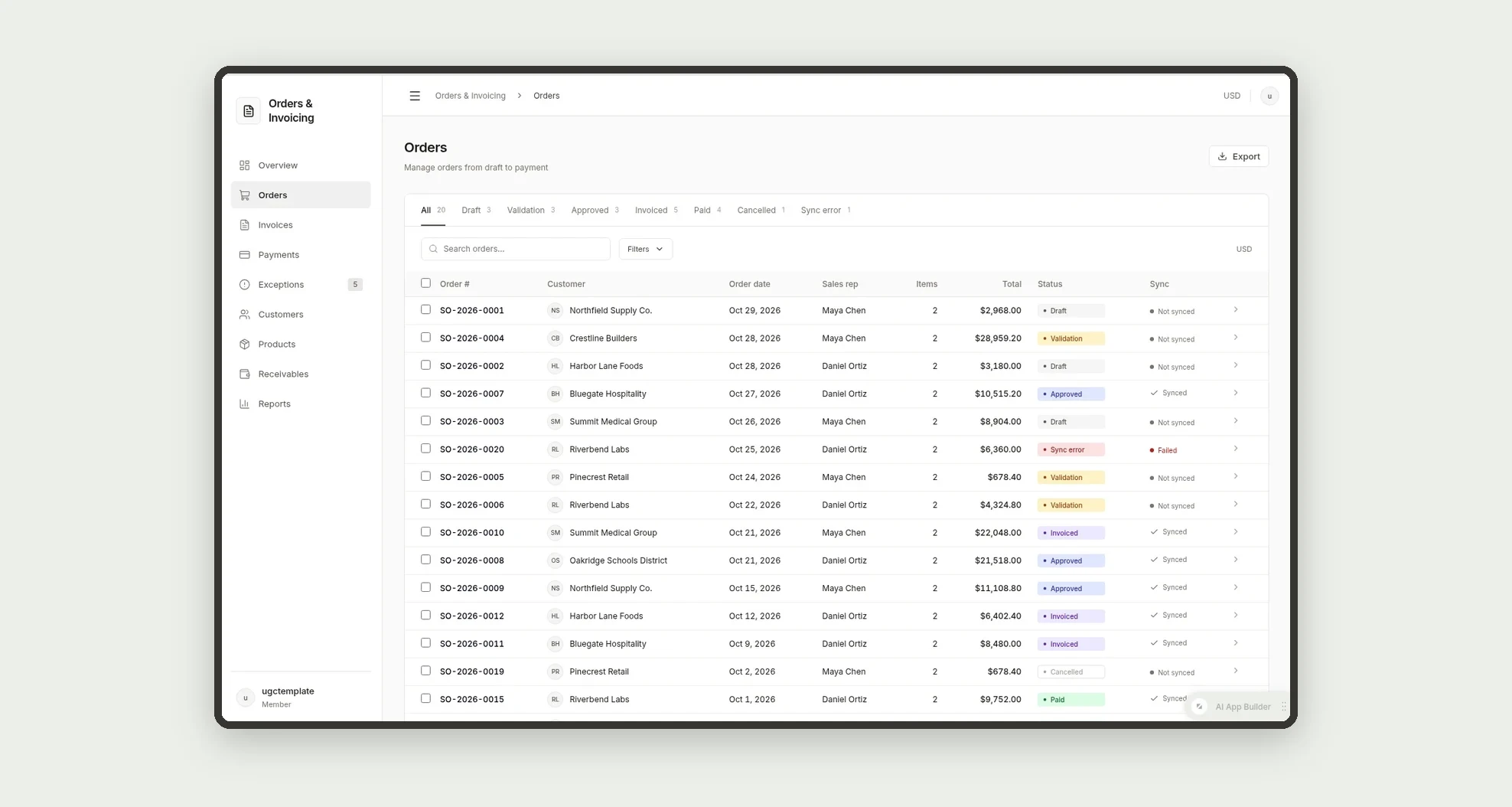
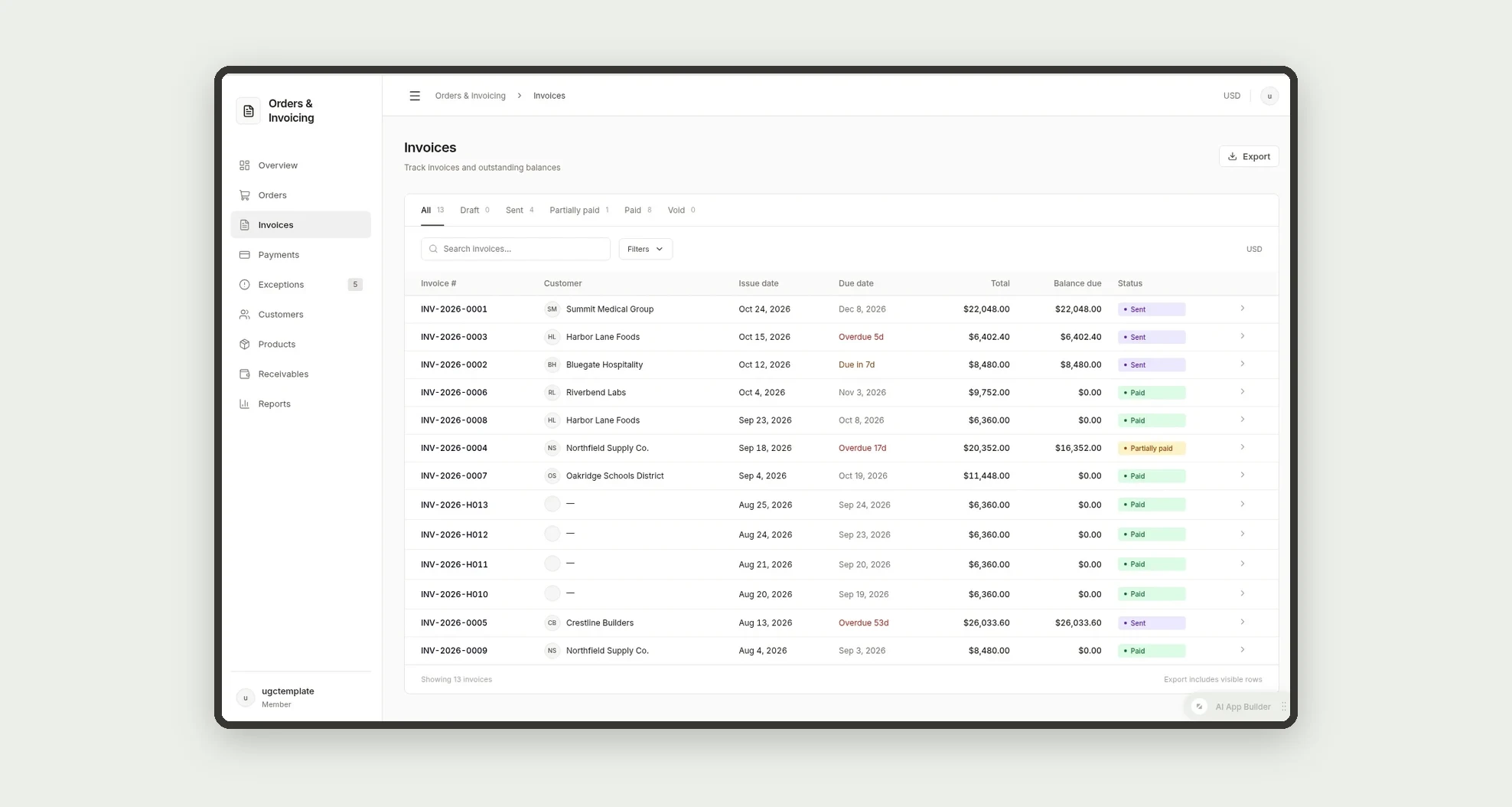
- Filter orders and invoices by status tabs, use bulk actions and export
App features
Overview
See revenue invoiced this month, open orders value, average order-to-invoice time, open exceptions, overdue receivables and collected this month on the Overview, with orders by stage, receivables aging, top 5 customers and the 5 most recent open exceptions.
Orders
Build orders with a line-item editor that pulls prices from the price list by customer segment.
Invoices
Filter orders and invoices by status tabs, use bulk actions and export.
Payments
Finance records payments; when the balance reaches zero the invoice and the order become Paid.
Exceptions
Work through problems in a two-pane exceptions queue with Resolve, Retry sync and Reassign.
Customers
See revenue invoiced this month, open orders value, average order-to-invoice time, open exceptions, overdue receivables and collected this month on the Overview, with orders by stage, receivables aging, top 5 customers and the 5 most recent open exceptions.
Products
The Products screen covers this part of the operation.
Receivables
Follow receivables aging by customer (Current, 1-30, 31-60, 61-90, 90+) and see credit limit vs balance on each customer profile.
Reports
The Reports screen covers this part of the operation.
How it works
A sales rep builds a draft order and submits it for validation. Automatic checks run; each failed check creates an exception assigned to Billing, or to Finance for credit limits.
Billing approves the order, and it is sent to the ERP; a failed sync creates a high severity exception. Billing creates the invoice, which is emailed to the customer's billing contact with the due date from the payment terms.
Finance records payments; when the balance reaches zero the invoice and the order become Paid.
How to set up this template
- 1Click Use App
Create your Jestor account and install Orders & Invoicing. It works on desktop and mobile.
- 2A sales rep builds a draft order and submits it for validation.
A sales rep builds a draft order and submits it for validation.
- 3Automatic checks run; each failed check creates an exception
Automatic checks run; each failed check creates an exception assigned to Billing, or to Finance for credit limits.
- 4Billing approves the order
Billing approves the order, and it is sent to the ERP; a failed sync creates a high severity exception.
Integrations and customization
Works on desktop and mobile. Dark mode follows the user's Jestor theme automatically. Payment terms, price lists, credit limits and exception types can be changed without code, and you can add fields, tables and automations to fit your process. With Jestor automations you can email invoices, send overdue reminders 3 days after the due date and every 7 days after that, and notify account owners. Each order and invoice has an ERP ID and sync status, so connecting it to your ERP is a possible adaptation.
- Adjust fields, categories, statuses and rules without code.
- Add screens, reports and automations as the operation needs them.
And that's just the start: you can edit any part of this template and go much further just by asking Jestor's AI. Describe what you need, like a new field, automation, report or integration, and the AI builds or adjusts it for you, no code required.
Frequently asked questions
What happens when an order fails a check?
Each failed check creates an exception with an owner, and the order stays in Validation until the exception is resolved.
Can an invoice be partially paid?
Yes. Each payment updates the amount paid and the balance due. The invoice shows Partially paid until the balance reaches zero.
Who can approve orders?
Billing and Admin. Sales reps create and edit their own orders but cannot approve or invoice them, and Finance has read-only access to orders.
Can an order be cancelled?
Yes, before it is invoiced. Cancelling requires a reason, and the app records who cancelled it and when.
Does it come with sample data?
Yes. The template includes 8 fictitious customers, 12 products, 20 orders across every status, 9 invoices, 8 payments and 7 exceptions so you can explore every view before adding your own data.